Softphone Setup
Note: The web portal login username is teleconnx and the password is your AWS instance id.
The login username for SSH access is also teleconnx.
1. Now that you've created a phone extension, you'll need your secret to login from a softphone
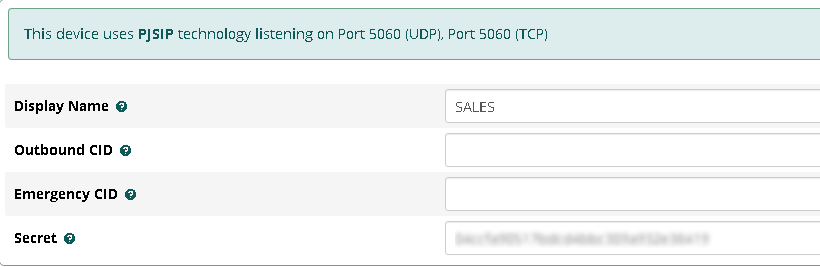
Go to Applications->Extensions, and then click the Pencil icon to edit your extension.

2. You'll find your extension "Secret" when you hover over the field.
Note: You'll need this secret for the Zoiper softphone setup.
3. Download and install the softphone called Zoiper to place calls
Click <here> to download that software.
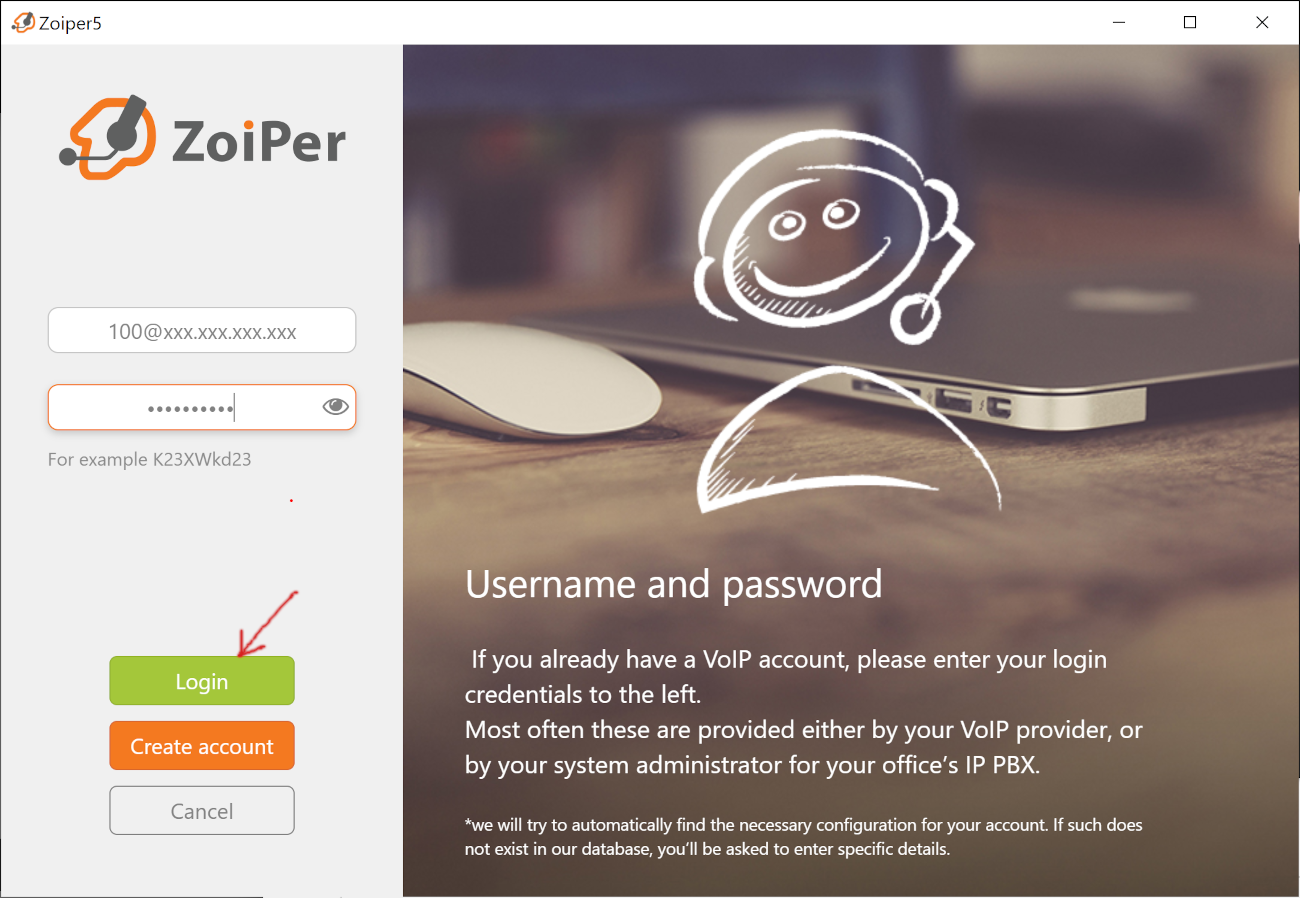
4. Enter your username as <phone extension>@<instance ip> and the extension secret. Then click the "Login" button.
Note: Enter the phone extension number that you just created along with your instance IP.
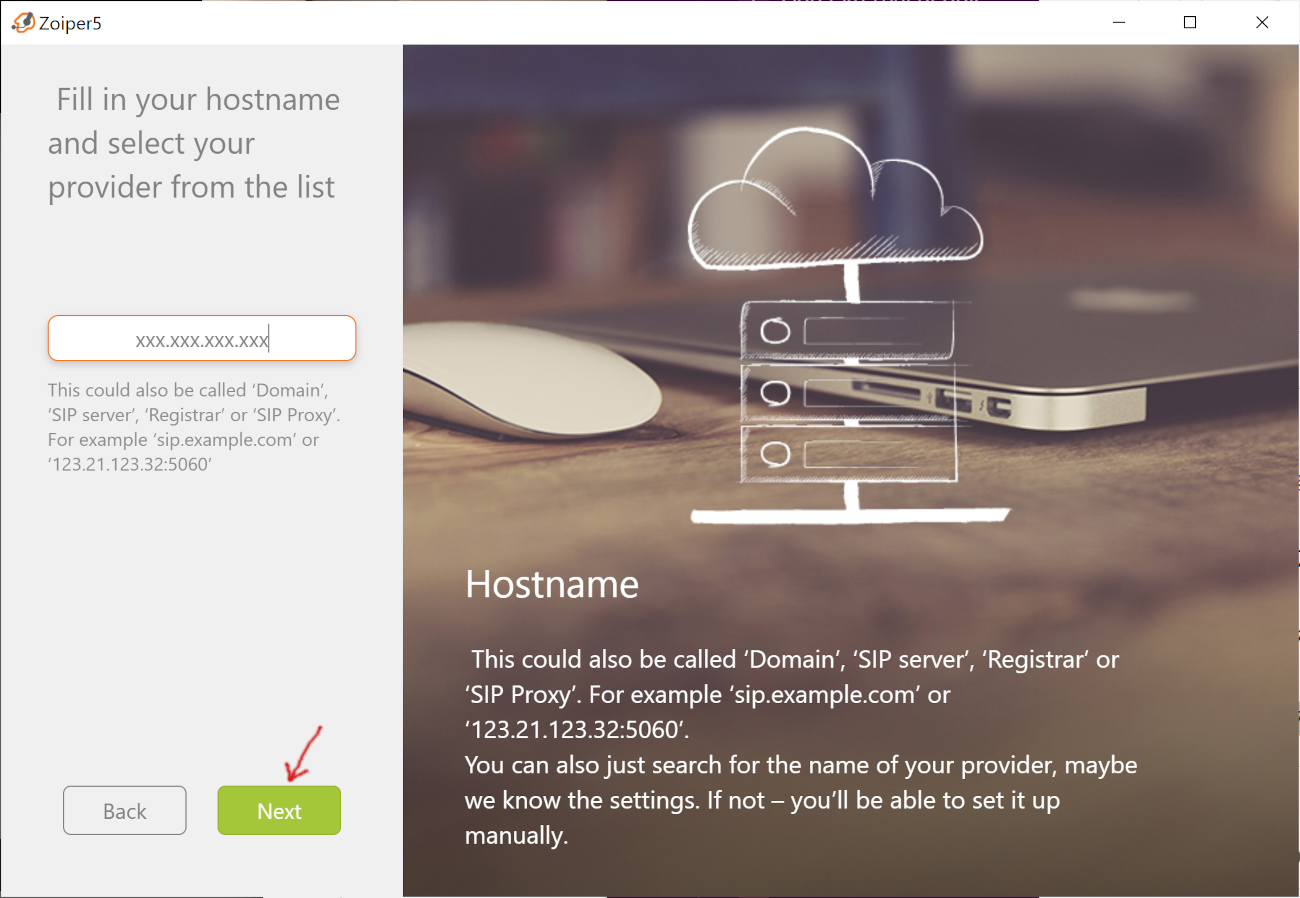
5. Click the "Next" button to continue.
Note: This is filled in automatically for you.
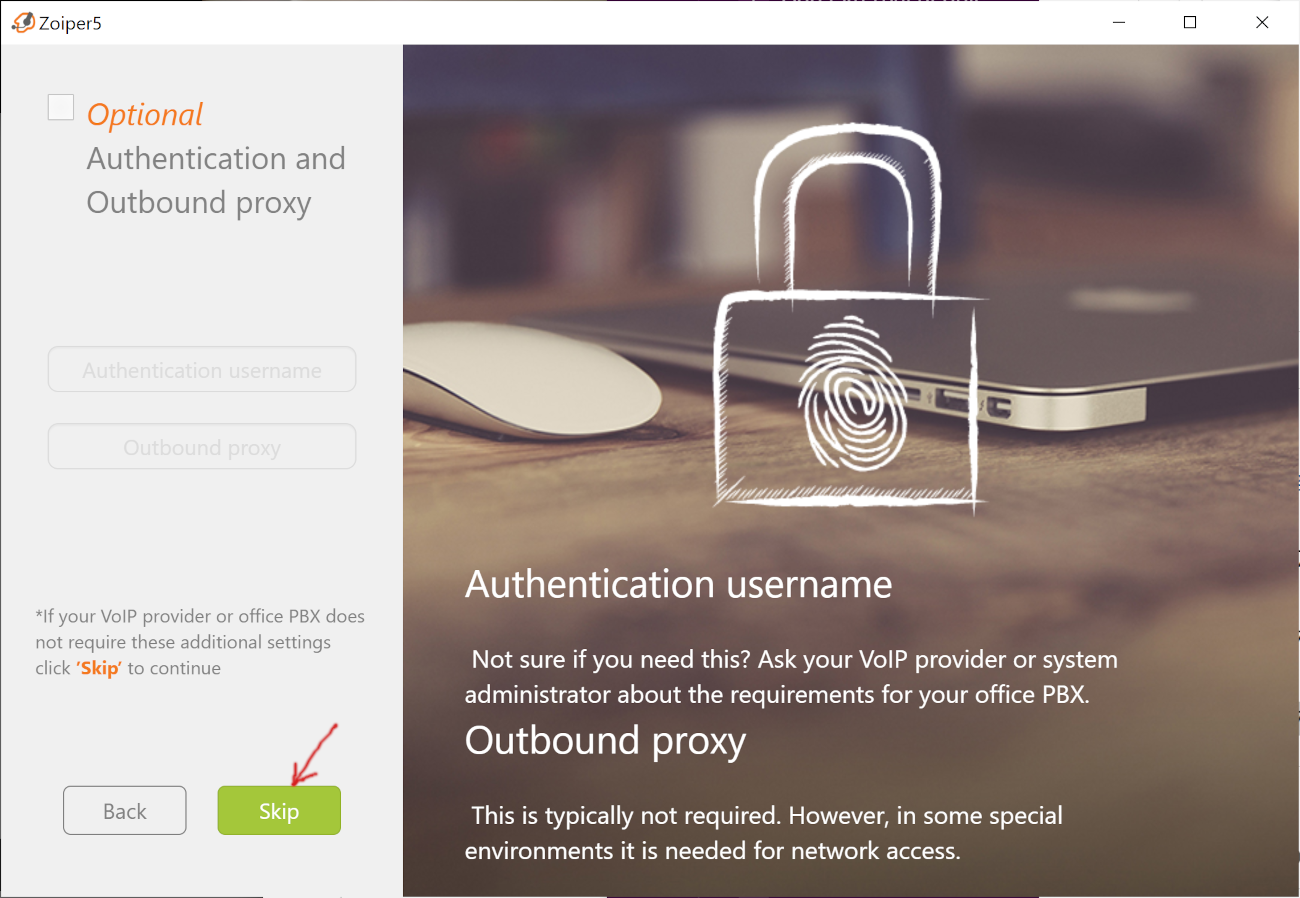
6. Click the "Skip" button to continue.
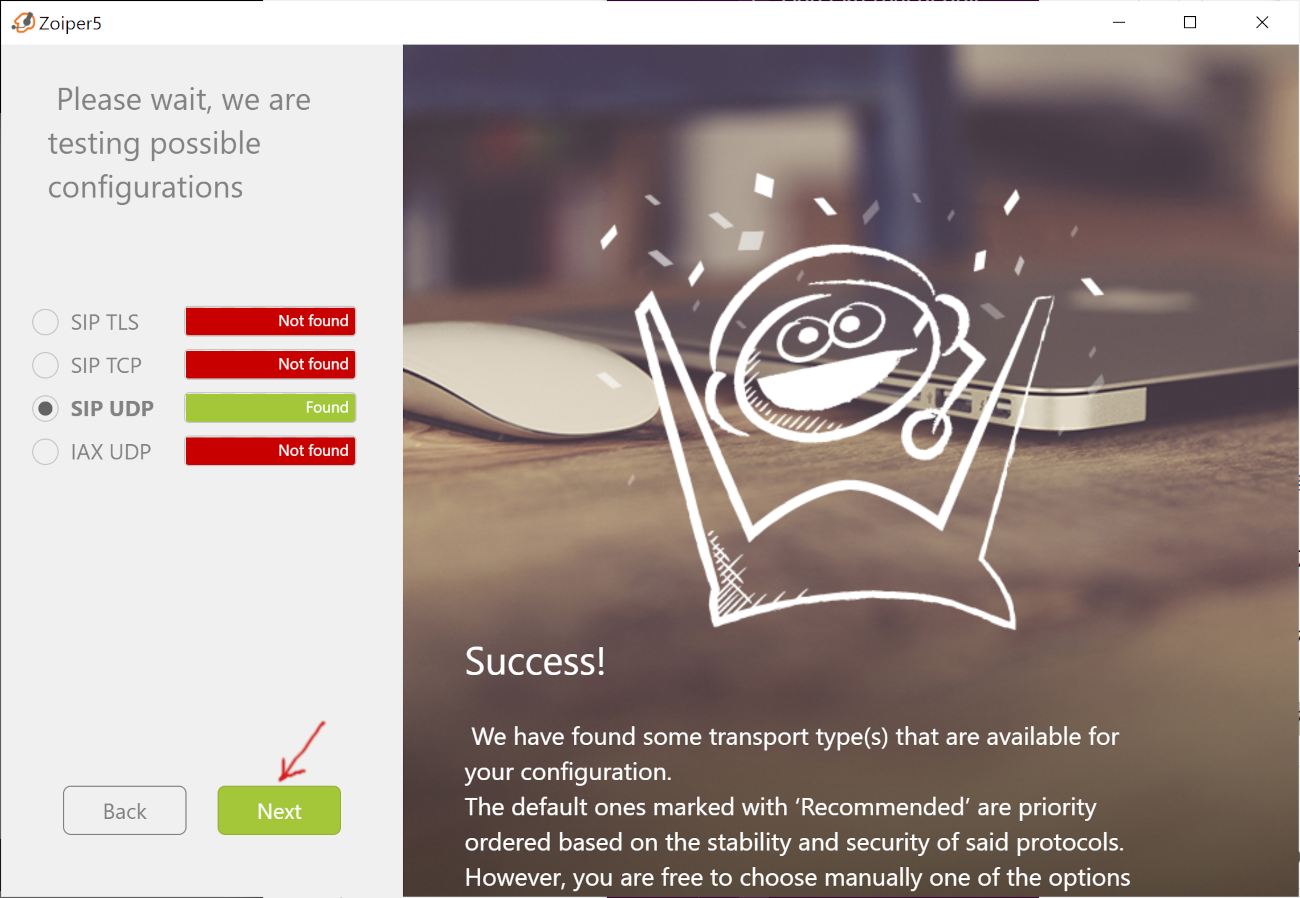
7. If SIP UDP says "Found", the login was accepted. Click the "Next" button to complete the setup.
Note: If it doesn't find SIP UDP, then go back and double-check that you entered the password correctly.
8. Click the "Configure" button to setup your phone audio.
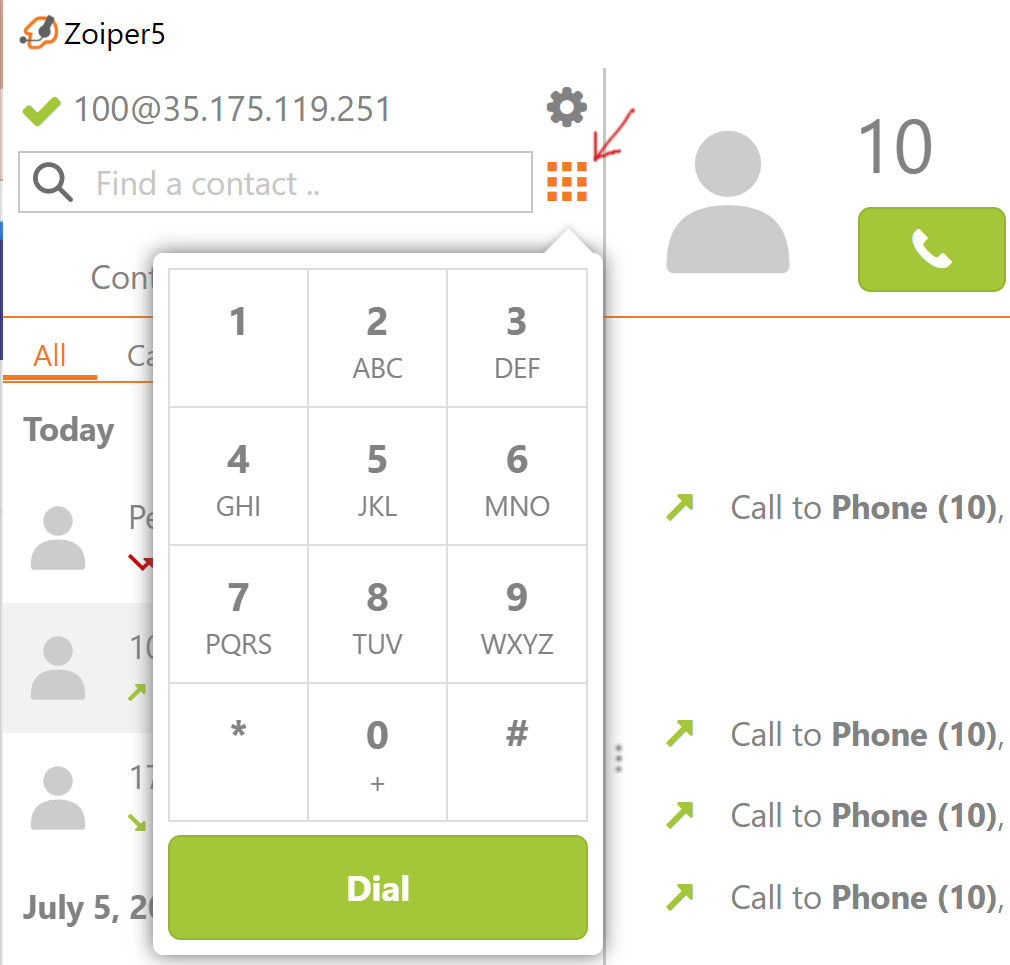
9. Click the dial pad to place a test call. Enter a toll-free number and click "Dial".