FreePBX Server Setup
Note: The web portal login username is teleconnx and the password is your AWS instance id.
The login username for SSH access is also teleconnx.
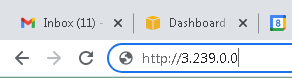
1. In your web browser, enter your instance's IP address as http://xxx.xxx.xxx.xxx -- a secure URL can be setup later.
Note: You can find the IP in the instance list under the "Public IPv4" column.
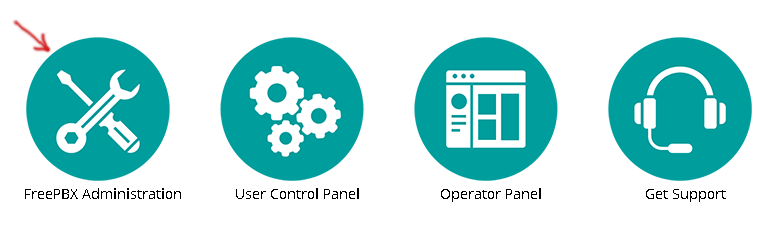
2. You will be directed to the default login page. Click the FreePBX Administration link to login.
Note: Your username is teleconnx and the password is the AWS instance id from AWS setup (AWS step #2 above).
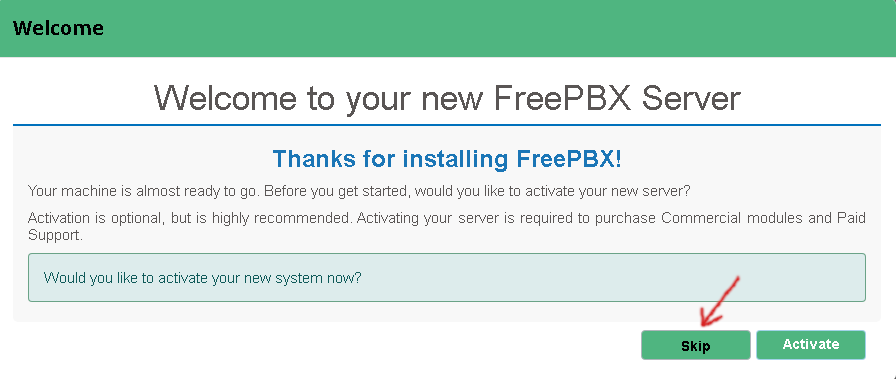
3. Click the "Skip" button, as we'll activate later.
Note: If you would like to activate now, open an account at portal.sangoma.com first.
4. You will have a few more pop-up windows related to purchasing optional products and services.
Note: You can skip these if you wish, as you can always purchase additional items later.
5. Select a default system language for your system and click the "Submit" button.

6. Click the "Continue" button to setup the firewall.
Note: We highly recommend setting up the firewall to protect your system.
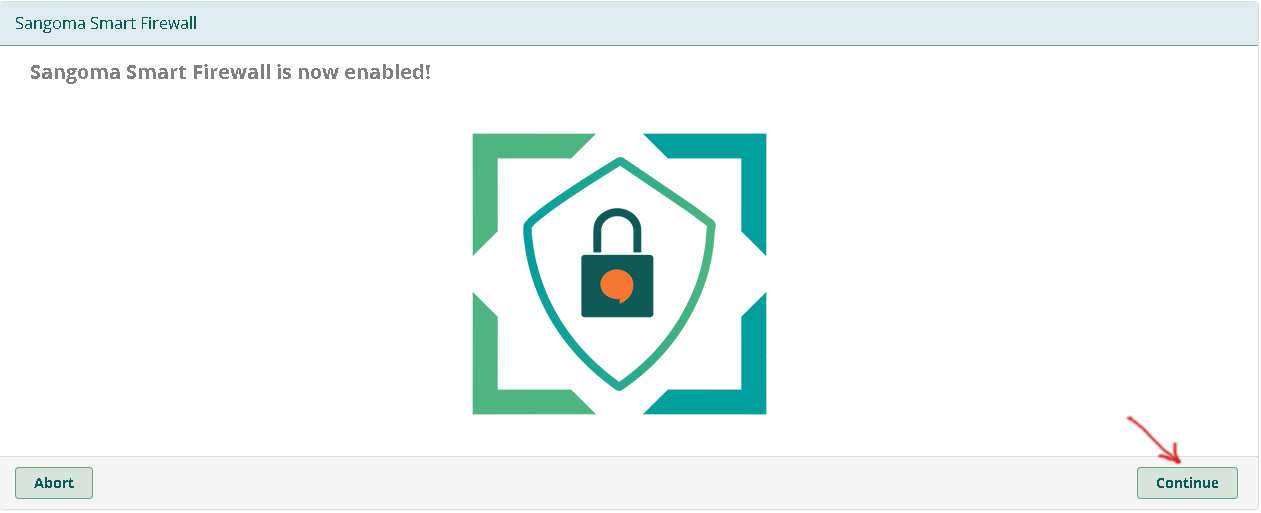
7. Click "Next" to proceed with the firewall setup.
Note: If your IP gets blocked, you can can reboot your instance to get back in.

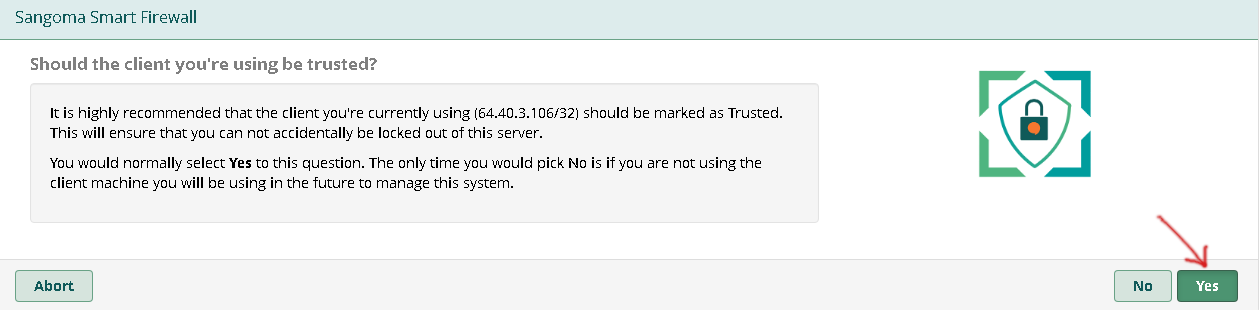
8. Click "Yes" to whitelist your IP, so that it will be allowed to access the portal.
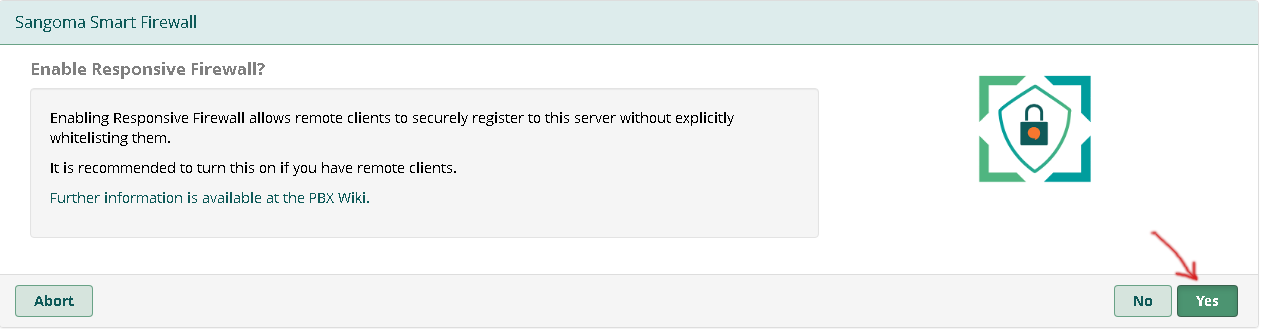
9. Click "Yes" to enable the Responsive Firewall.
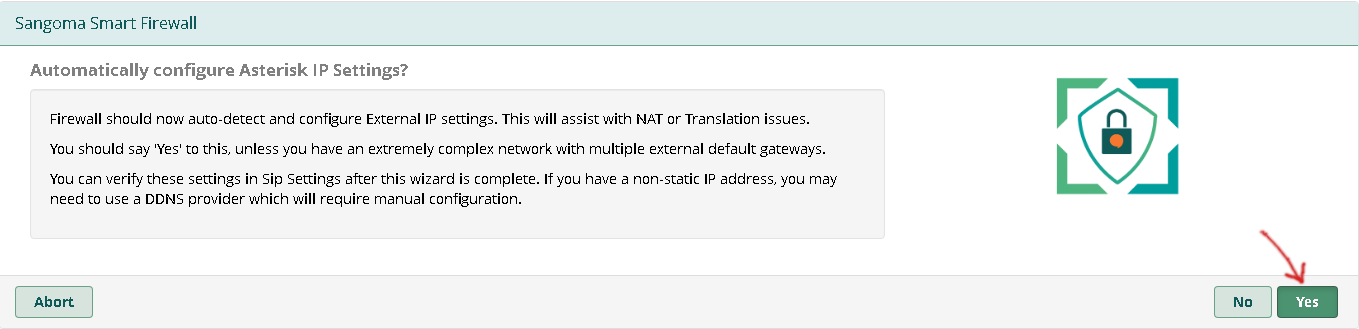
10. Click "Yes" to autoconfigure Asterisk IP settings.